
Everything You Need to Know About Bitrate
January 2, 2026 · Eric Yoo

The Perfect View
KineMaster and Spring make it easy to save your video for everywhere you might want to watch: from 4K TVs all the way down to that old phone from 2015 at the back of your drawer… and every other kind of screen in between!One setting makes a big difference to how your video looks when you watch it. Bitrate, at first glance, seems like it just adjusts your final file size. It actually does a lot more than that, and can be the make-or-break setting for videos you plan to upload to YouTube, Instagram, TikTok. Once you’ve mastered bitrate, you’ll be able to save your video projects so that they look the absolute best no matter where you plan to host your next premiere.
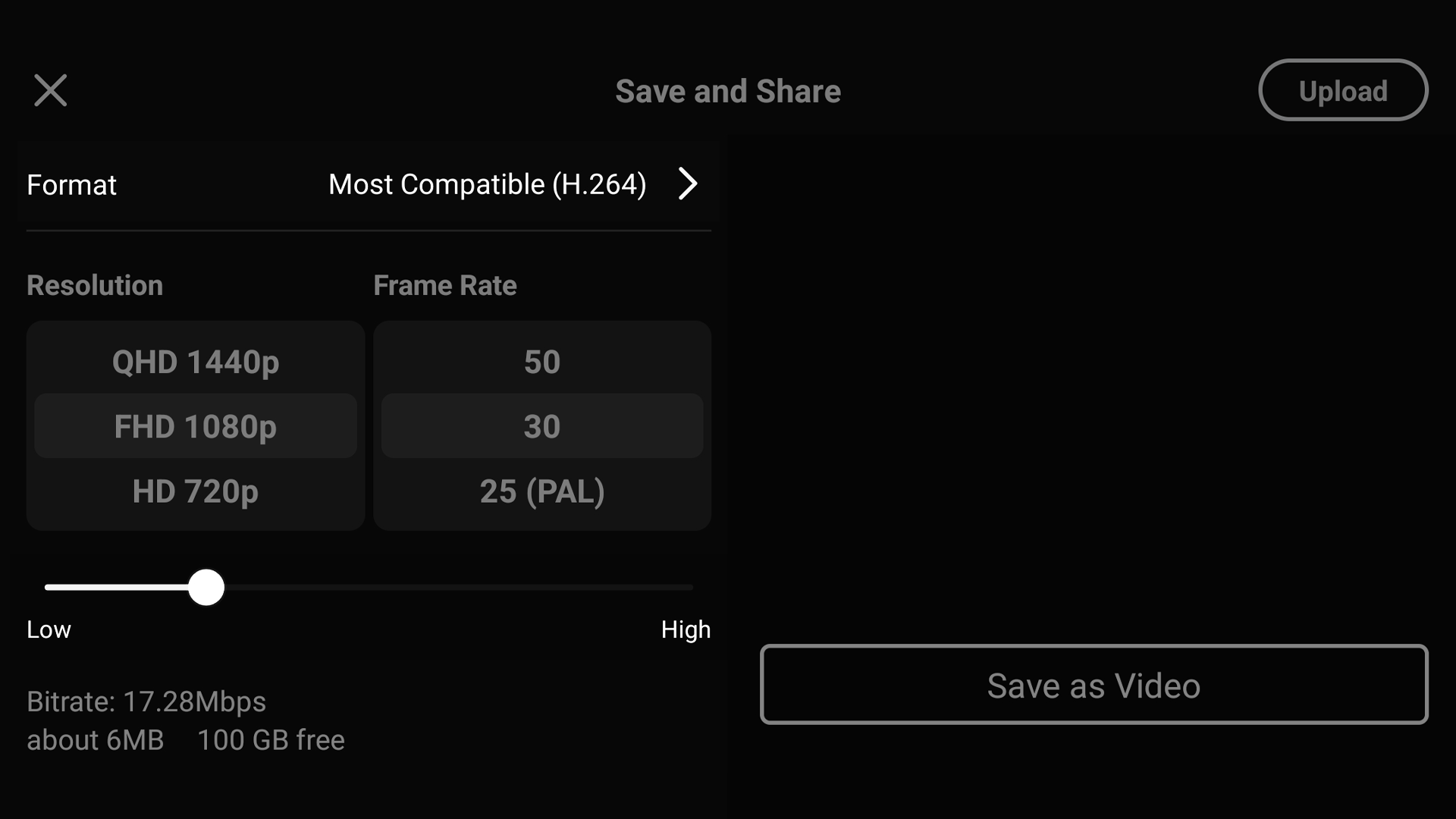
Getting to Know Bitrate
Your file size changes when you move the Bitrate slider. That’s because the lower the bitrate, the more compressed each video frame becomes. Heavy compression causes each frame to lose sharpness. Objects in your images may also get some weird-looking colors around the edges. That loss in detail is a big file size saver.What does that look like in the real world? Below are images comparing the lowest quality bitrate, the recommended bitrate for most social media, and the highest quality bitrate.
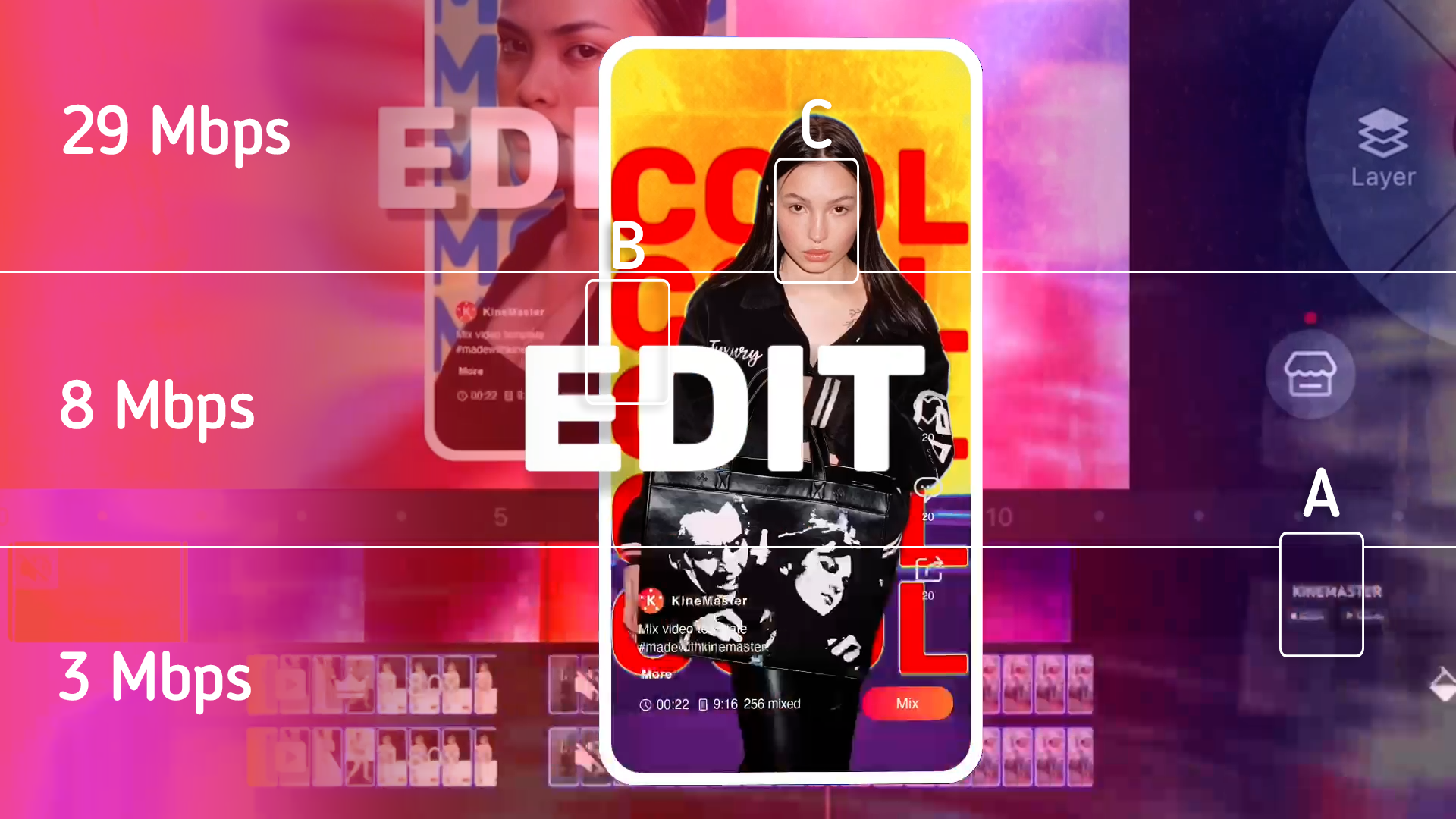
The full frame shows how those bitrates appear. You may not immediately notice a difference in quality when you watch your video, especially if things are moving fast. A closer look shows how details for text, object edges, and faces are each affected in different ways.
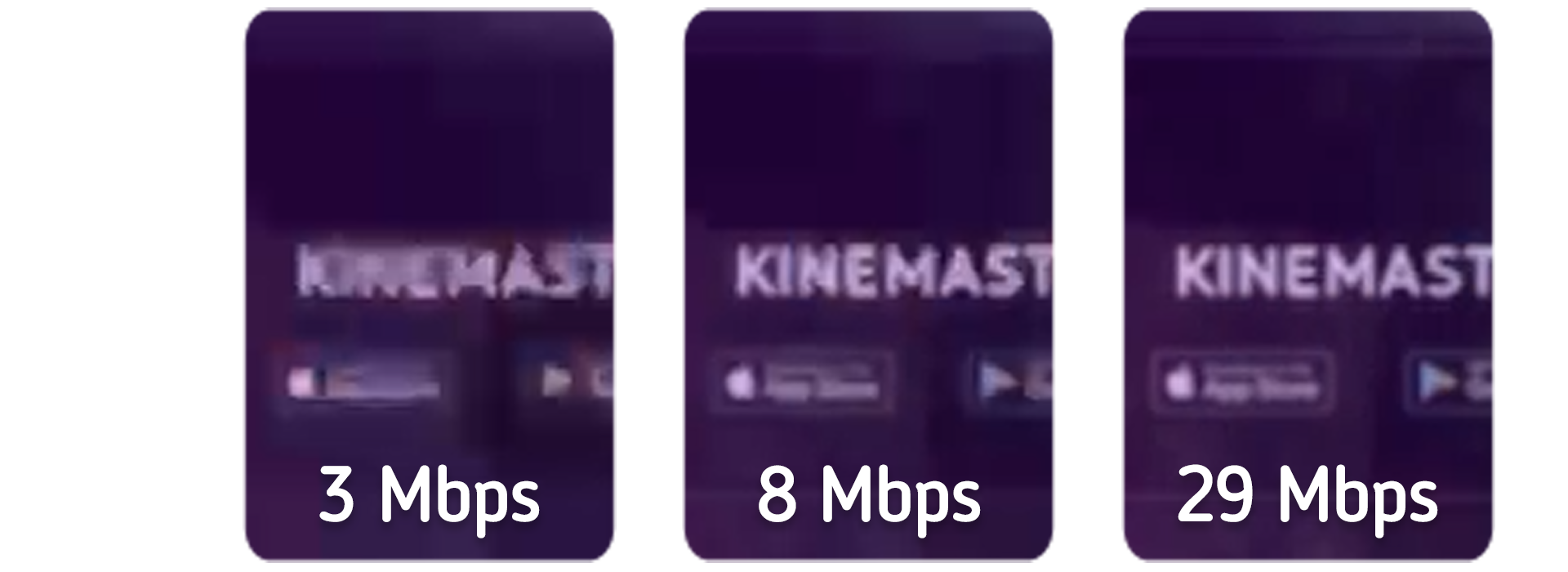
Text, especially small text, can be difficult to read when the bitrate is lower than the default 8 Mbps. The edges can blend together or appear blurry.
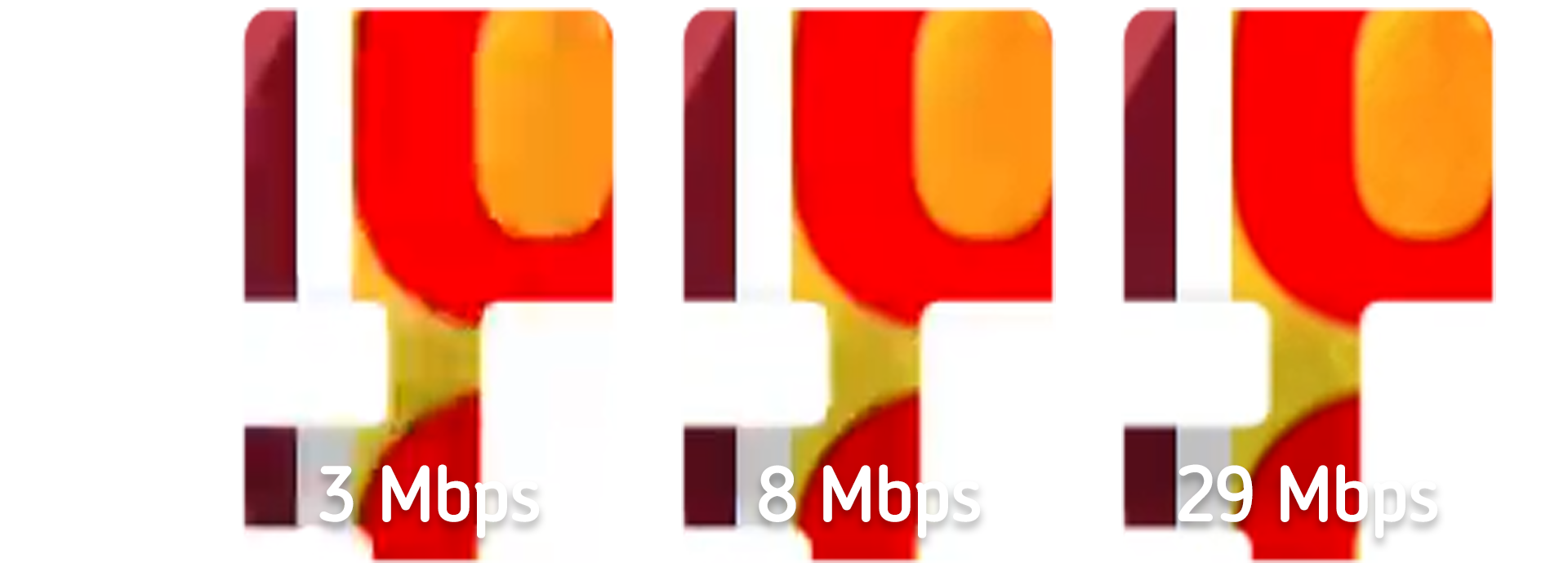
Edges can lose their shape, especially around curves. Straight lines and squares will remain mostly clear, even at low bitrates.
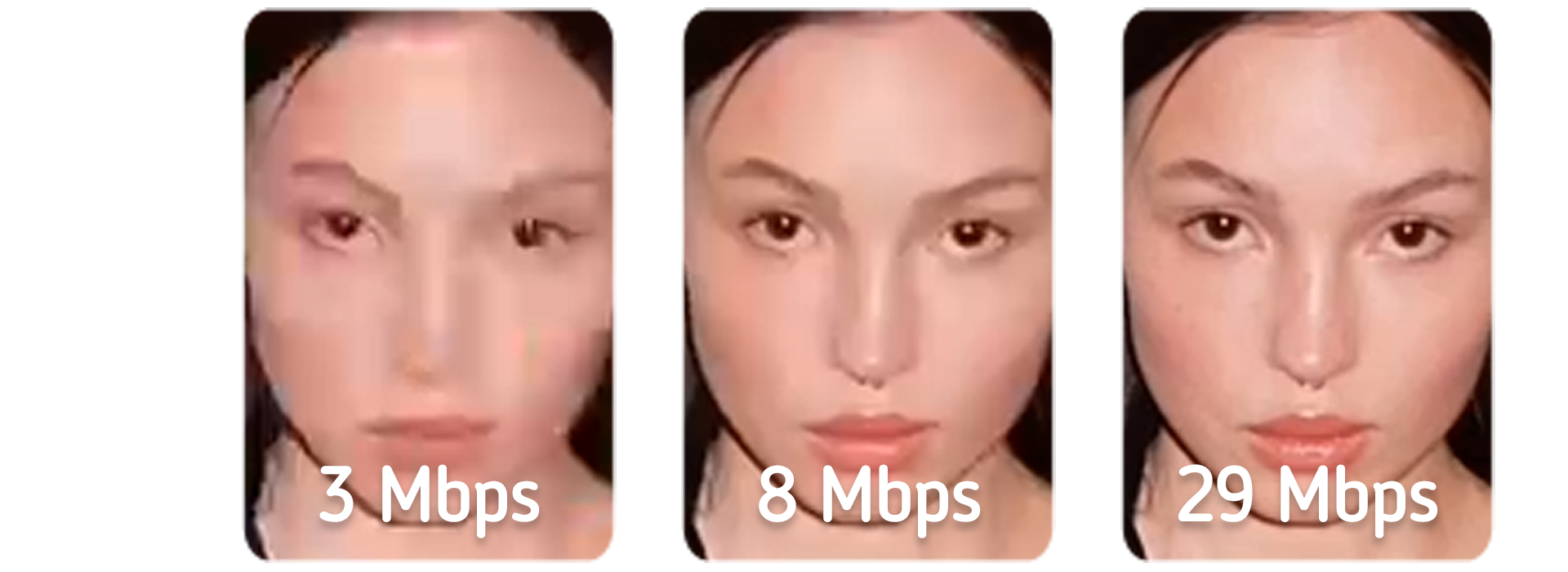
Details in objects with small, individual parts (like faces) can look smoothed out or blurry at low bitrates. Higher bitrates offer sharper details and better contrast.
Choosing a Codec
KineMaster lets you choose two different ways to compress your video. H.264 or H.265. The right one to pick depends on what you plan to do with your video.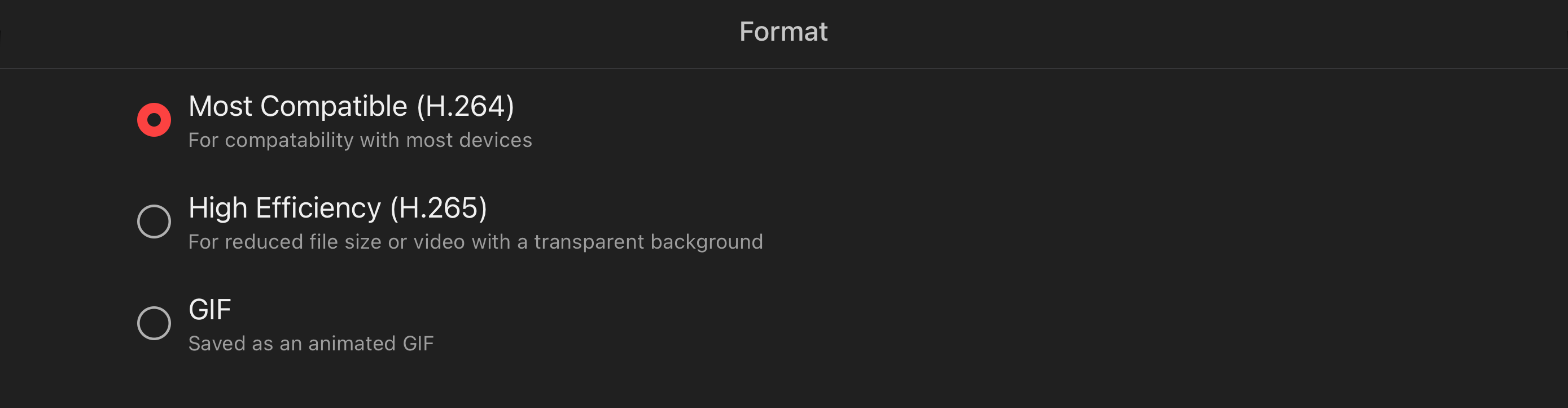
Social media platforms like YouTube prefer H.264. H.264 is supported by most things, from phones to smart TVs. If you have an older device, it likely supports H.264. The reason, in both cases, is that H.264 requires less computing power to process and play back.
If you’re going to be watching your video on a newer TV or phone, H.265 offers significantly higher quality video at the same bitrate. A 15 megabyte video encoded in H.265 will look much clearer than a 15 megabyte H.264 video. H.265 also offers expanded exporting capabilities, like alpha video support (when you want to export with a transparent background).
You can also export your videos as GIF files. Animated GIF videos offer the ability to create much smaller video files, but at a heavy price. Limited to 256 colors per frame, a video saved as a GIF may have extreme differences from your original video. They are mainly useful for creating videos that are small enough to load in messenger apps, chat messages, or on web pages.

Network Speed & Bitrate
When your phone or tablet is on a high speed wifi network, you can stream high bitrate video at high frame rates and it looks great. On a slower wifi network, high bitrate videos can’t download each frame fast enough to maintain your frame rate. This can result in buffering pauses or stuttery video playback. If you’ve ever tried flipping through TikTok or Reels on a public wifi at a café or the airport, you’ve probably noticed this effect.Low bitrates sacrifice image quality to maintain smooth playback at a reasonable frame rate, without buffering or stuttering. So, if your video looks like it has been significantly compressed when you watch it on Facebook, keep in mind that the network speed may be the cause.
Save Your Video
Saving your video with H.264 will be faster than with H.265. This is especially true for older or budget-friendly phones and tablets.If you have created a video project with a transparent background, H. 265 will be automatically selected when you export your video. You can switch the format to GIF, if that’s what you need.
The default bitrate (approximately 8 Mbps) is set for optimal upload to platforms like Instagram, TikTok, or YouTube. If you’re planning to show off your video somewhere else, move the slider left (more compression) or right (higher quality) to balance video quality and file size.
Depending on the type of phone or tablet that you have, space may be limited. Using Bitrate to adjust the file size is also a good tool for managing your storage space.
(Bit)Rate Your Video
In a perfect world, we could all watch videos at the highest possible resolution with no compression on any screen. Until then, bitrate gives you control on how good your video looks when compromises have to be made. The best bitrate is always the one that looks the crispest and plays back smoothly for everyone watching.FAQ
How does KineMaster compress video?
KineMaster lets you choose to reduce the file size of your video using the H.264 or H.265 codecs, and to control the quality of the compression with the Bitrate slider. Videos can also be compressed as GIF files.
Why would a video look better if it’s compressed?
Compression enables smoother playback on older and budget friendly phones and tablets. It also makes playback smoother if you’re on a slower wifi network.
What is KineMaster’s default bitrate?
KineMaster sets the default bitrate to about 8 Mbps, but you can increase or decrease the bitrate before you save your video.
How do I adjust the bitrate for my KineMaster video?
The slider at the bottom of the Save as Video screen allows you to adjust the bitrate of your image. Information about the final file size is also provided to help you manage storage on your phone or tablet.
This article was written and reviewed by the KineMaster Editorial Team.

Two apps, one subscription!
Subscribers to KineMaster Premium get Spring Premium for free!
Create Mind-blowing Videos, Fast and Easy now!