
8.1 is Your Type of Editor
March 5, 2026 · Alex Grant
The pacing, position, and style of your video’s text is critical to making your content clear and fun. With KineMaster, it’s never been easier to make awesome videos with text and captions that leap out of the screen and grab your audience's attention.
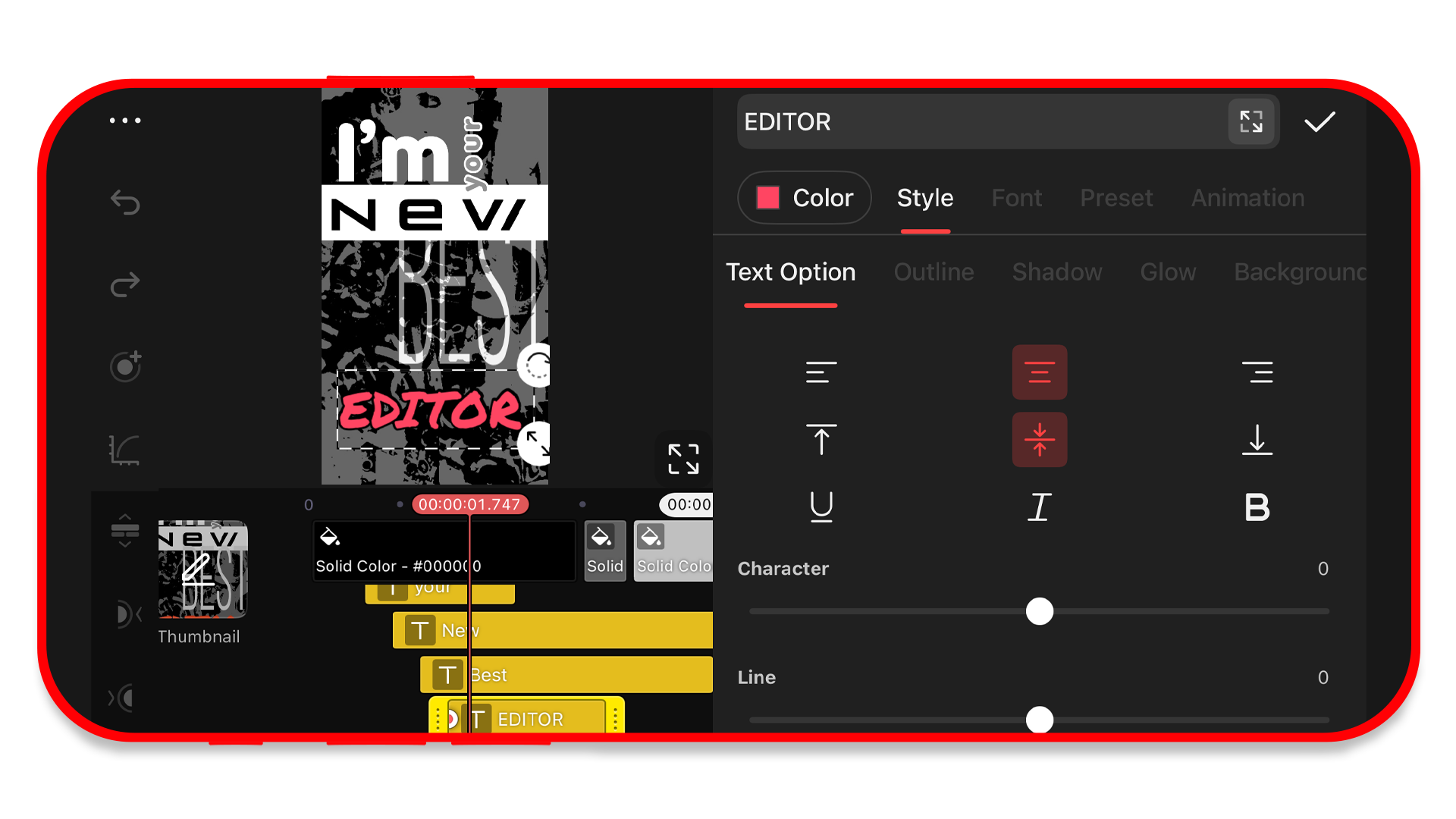 KineMaster 8.1 updates how you interact with text in your video and lets you preview how the text will look at all times.
When you add a text layer to your video project, you’ll immediately notice a difference compared to previous versions of the app. Instead of a text box that fills the screen, you instead get a clean, modern interface where every text option is at your fingertips.
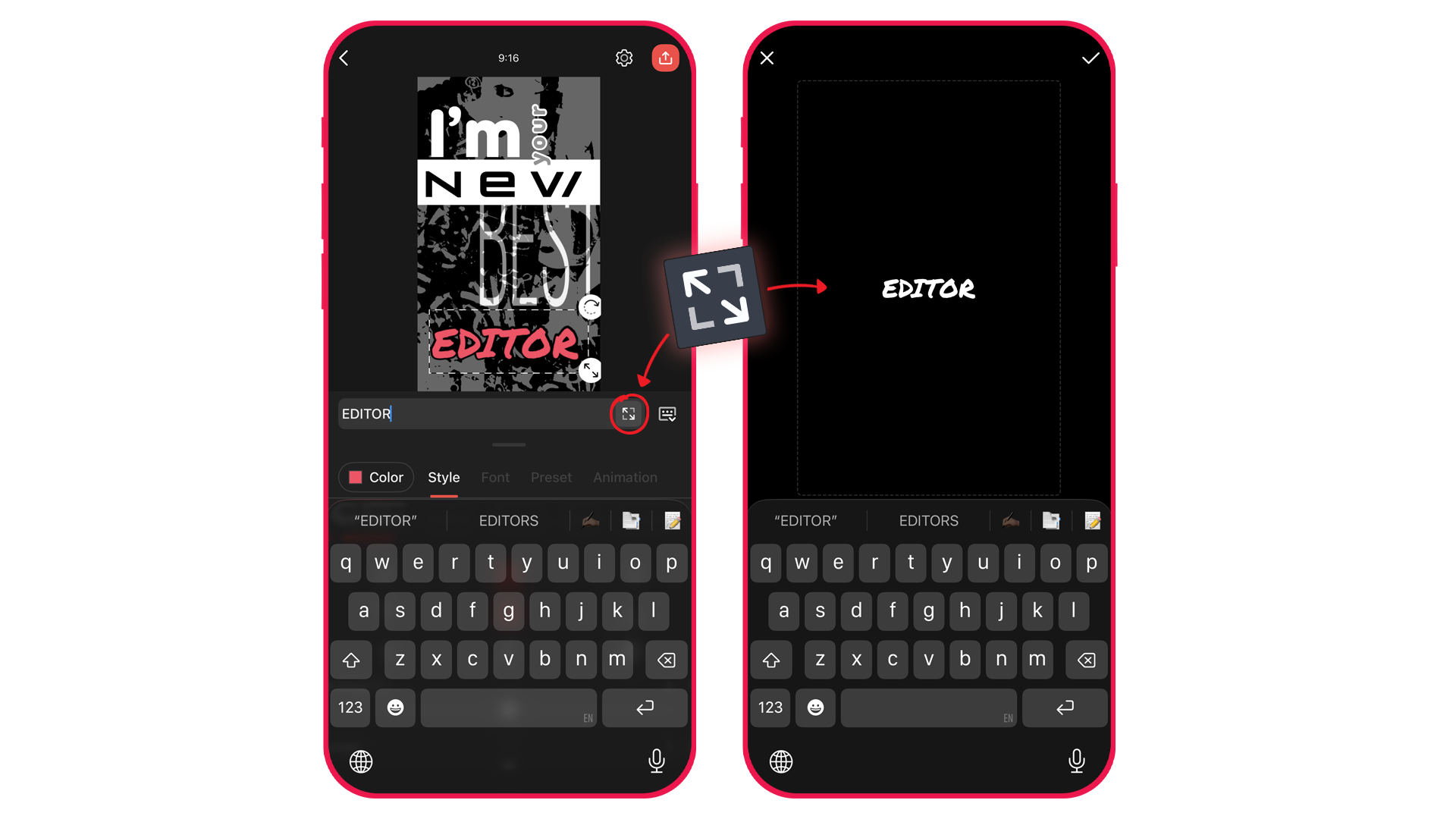 For experienced KineMaster users, the old style text input box is still there. If you need to add more than one line of text, tap the Expand Type button to bring up the full-screen input box.
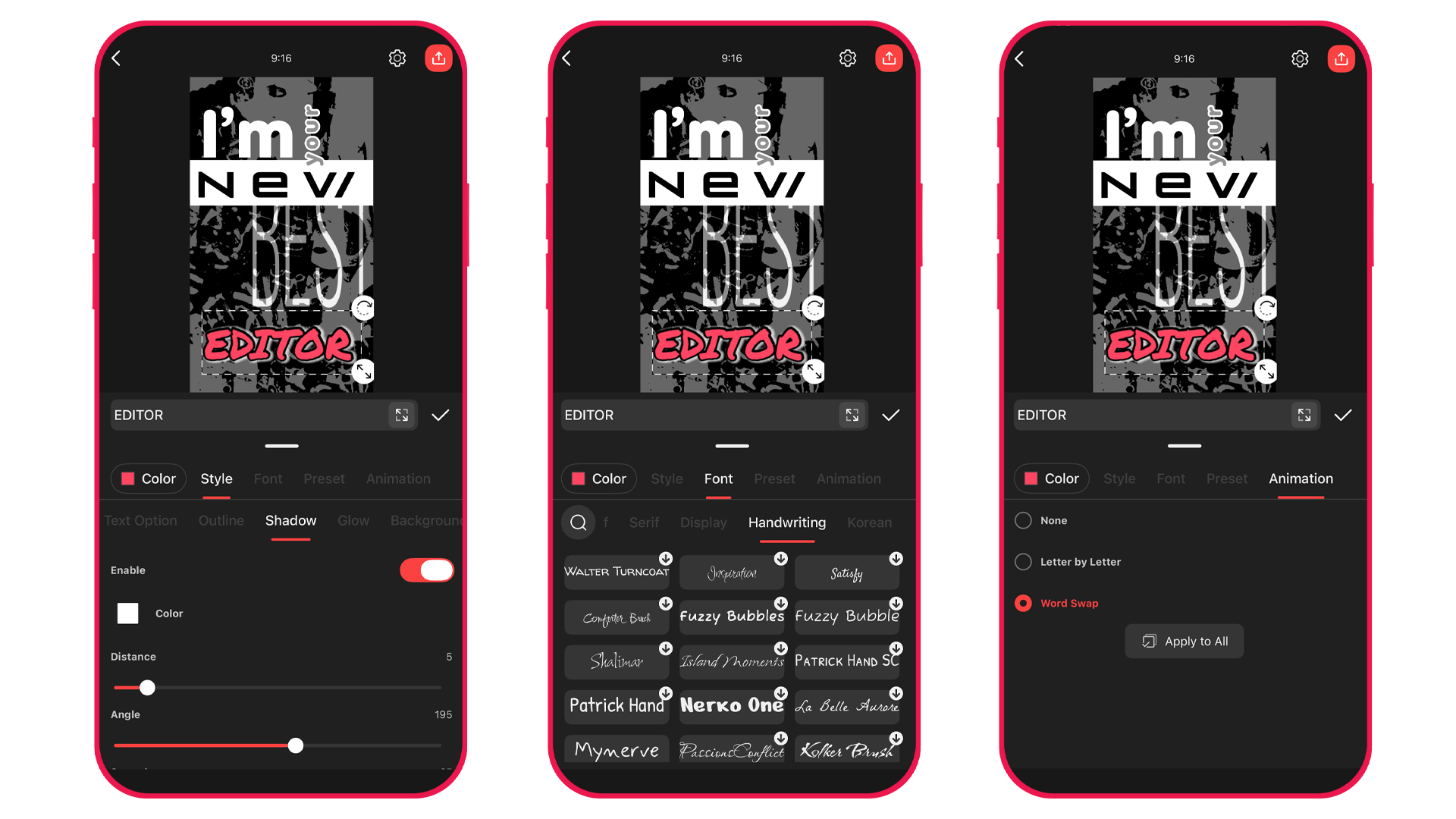 Navigate to the other tabs to find color, font, formatting, and styling options for your text without ever leaving the Text Layer interface.
Also new to KineMaster 8.1 is the Word Swap animation. Word Swap shows the text in your layer one word at a time, across the duration of your text layer. Need rapid-fire text? Make your Text layer shorter to increase the speed that the animation plays.
Word Swap also works great with KineMaster’s Text-to-Speech and Auto Captions tool. You can create both spoken and captioned audio from your text by adding it to a Text layer, then converting it to narrated audio with the Text-to-Speech tool. Then, select the generated audio track and apply Auto Captions. When you use Word Swap with your Auto Captions, the words should match up very closely with the spoken audio!
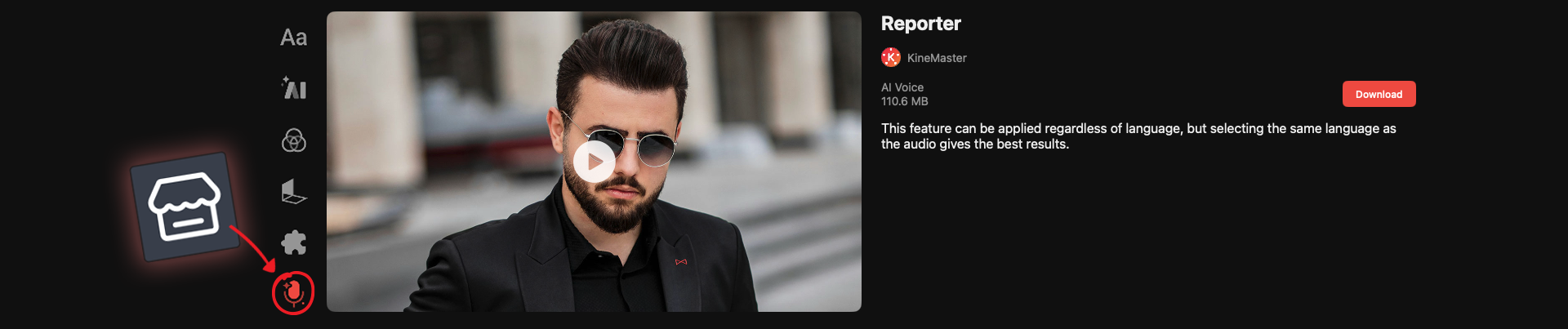 TIP: Apply an AI Voice filter to your Text-to-Speech audio track for more natural sounding speech. There are tons of AI Voices available to download on the Asset Store.
KineMaster 8.1 makes adding text to your videos a snap by bringing everything together in one place. With quick access for typing, editing, revising, proofreading, and then changing the color, font, formatting, style, and animation of your text layer, KineMaster 8.1 is truly your type of editor!
FAQ
What’s new in KineMaster 8.1?
The KineMaster 8.1 update improves how you are able to input text by putting everything in one quick-access screen. Type, edit, revise, and proofread your text and then change the font, color, formatting, and animate it without ever leaving the text screen!
How do I add multiple lines of text in KineMaster 8.1?
The old, full-screen text layer view is still available in KineMaster 8.1! Just tap the Expand Text button to the right of the text input box to get there.
Where do I download more fonts for KineMaster?
KineMaster offers lots of fonts that you can download and use in your video projects. To search for and download more fonts, just tap the Asset Store button. Then, tap the Fonts category.
Can I add my own fonts to KineMaster?
On Android phones and tablets, you can add fonts to KineMaster by tapping the Settings button in the My Font area of the Fonts tab. Then choose an .otf or .ttf font file. On iPhone and iPad, you can only add fonts from the Asset Store to KineMaster in the app. If you have fonts you downloaded from other sources, you will need to use a font installation app from the App Store.
This article was written and reviewed by the KineMaster Editorial Team.

Two apps, one subscription!
Subscribers to KineMaster Premium get Spring Premium for free!
Create Mind-blowing Videos, Fast and Easy now!