
The Best Export Settings for Instagram Reels
April 13, 2026 · Alex Grant
Format: Most Compatible (H.264)
Resolution: FHD 1080P
Frame Rate: 24 or 30 FPS
Quality: 6-8 Mbps (higher is better, but watch your file size. Uploads to Reels are restricted and files larger than 4GB won’t work)
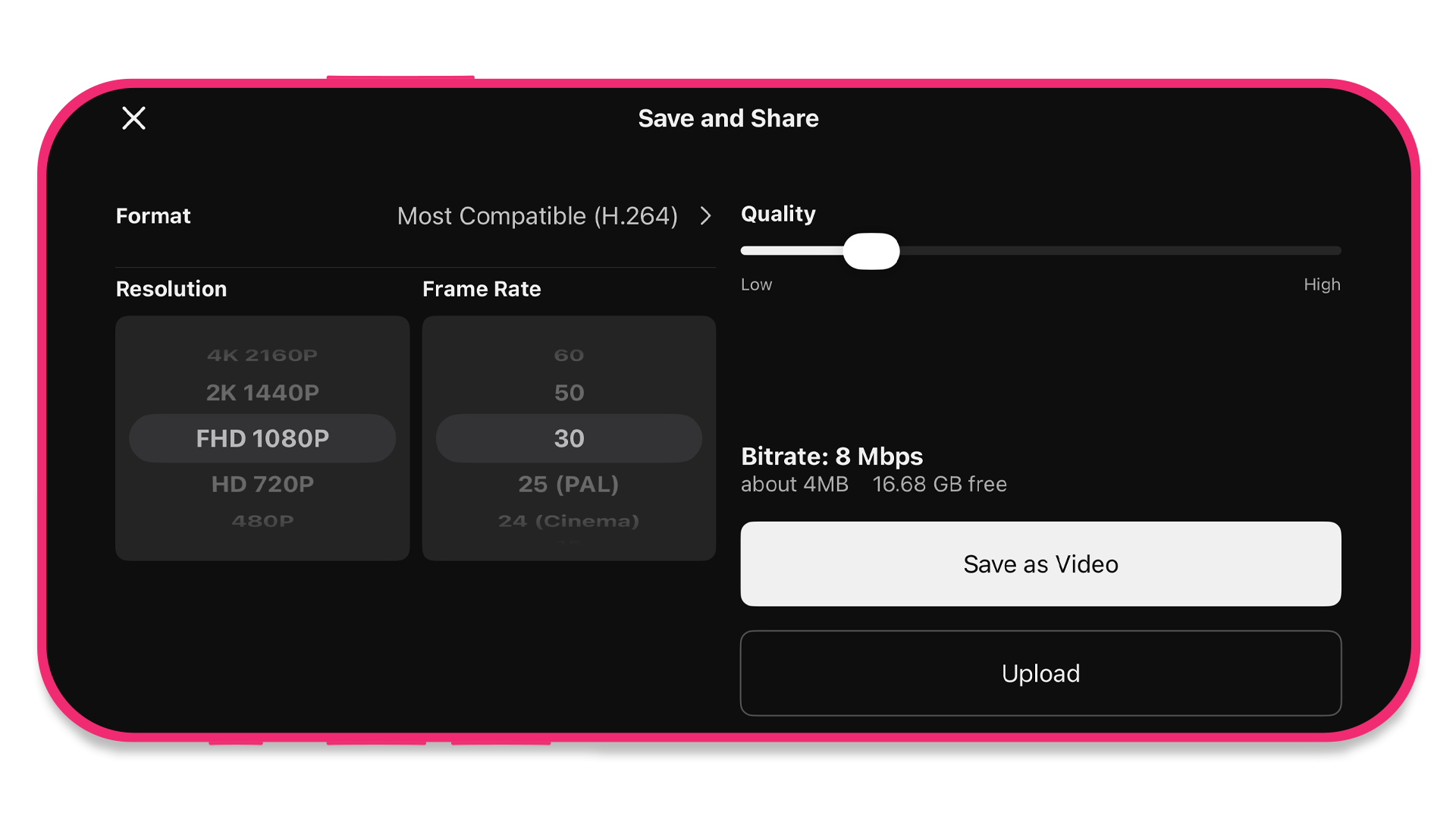
Saving your videos for Instagram is easy with KineMaster.
KineMaster lets you save your videos in 4K at 60 frames per second. This level of quality makes your video edits look incredible and you’re excited to share your creation with the world. You upload your video to Instagram Reels and… it doesn’t really look the same. Like, at all.
After all of the work you put into a video, it can be frustrating to share it to Reels only to find that other people aren’t seeing what you see when you watch your video in your Photos or Gallery app.
Why does this happen?
Exporting your video at the highest quality won’t help when you upload it to Instagram Reels. Instagram Reels will automatically transcode your video to their preferred specifications. That means it’s possible your 4K video will look worse than a 1080p version. So, it’s best to “play by the rules” when it comes to Reels uploads.
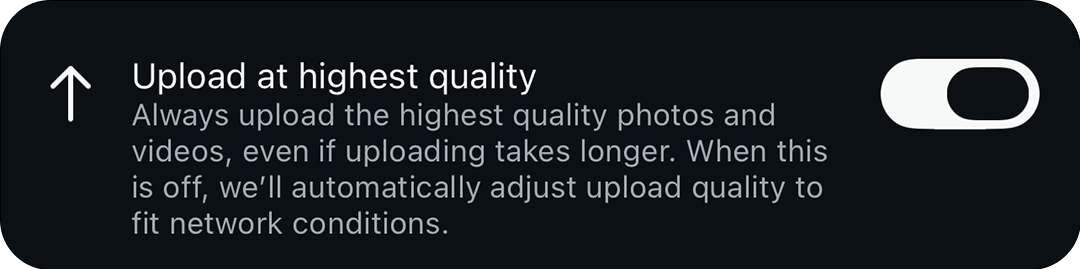
When you upload your video to Instagram Reels, be sure to enable “Upload at highest quality.”
All of this is entirely under your control. KineMaster and Spring make it easy to choose the right settings to create a great looking Reel.
I did all this and my video still doesn’t look right!
Check your media resolution. Only save your video at the resolution of the lowest-quality video clip or image in your project. When you save a KineMaster project at a higher resolution than your media, it will automatically scale up with frequently poor results. If you need to increase the resolution of a low-quality video or image, try applying the Super Resolution tool first.
Unlike YouTube Shorts, Instagram doesn’t allow the viewer to adjust the quality settings of videos that they’re watching. Instagram’s servers prioritize videos that have high view counts. If you’d like to learn more about that, here’s a write-up of an interview with Instagram head Adam Mosseri.
Instagram doesn’t say how many views your account needs to get in order to qualify for lighter compression. As your followers grow, it’s likely that you’ll see improvement over time.
Want to read more about export settings? Learn about Bitrate and truly take control of your video quality in this blog post where we take a deep dive into video compression.
FAQ
Why don’t Instagram Reels videos look as good as they do in KineMaster?
Double-check that you’ve saved your video at 1080p in KineMaster and that you’ve enabled Upload at highest quality in Instagram. You may also want to double-check that your cellular or wifi network is operating at a high enough speed to view Reels at their highest quality.
What are the best export settings for Instagram Reels?
To make your KineMaster video look its best on Instagram Reels, save your video at 1080p, at 24 or 30 FPS, and between 6 to 8 Mbps. Be sure that your file size is less than 4GB.
Why does my video look blurry when I save it in KineMaster?
If you are using video footage that’s been recorded at a resolution lower than your export settings, KineMaster automatically increases its resolution to match your specifications. Lower resolution footage often looks blurry when it is saved at a higher resolution unless you use a tool like KineMaster’s Super Resolution.
This article was written and reviewed by the KineMaster Editorial Team.

Two apps, one subscription!
Subscribers to KineMaster Premium get Spring Premium for free!
Create Mind-blowing Videos, Fast and Easy now!