
The Best AI Tools for Video Editors
April 21, 2026 · Alex Grant
 |
 |
 |
 |
 |
 |
 |
 |
AI is rapidly integrating into every step of the content creation process to make compelling, high-quality video productions. Professional AI tools exist for everything from script breakdowns and project budgeting to licensing and distribution.
But for filmmakers and social media creators on a budget? We’ve got you. From scripting to debuting your next video, for screens big or small, there are tons of AI tools to help you work faster and better– all without compromising quality.
 1. The Script
Mistral is a conversational AI for general purpose prompts. One to get your creativity going is, “Make an elevator pitch for a video where...” and then describe your concept, theme, or script.
Pi.ai is a great text-only AI assistant to make extremely descriptive scene settings. Try, “Based on this pitch, give a scene treatment with a four scene storyboard and detailed description.”
TIP: You can copy and paste in your scene treatment to KineMasterGPT, a script to video storyboard tool that lets you use ChatGPT to sound out different video concepts. This article has all the details about how you can use KineMasterGPT to speedrun your next video project.
 2. The Shoot
Manage on-location and on-set complications to keep your shoot on schedule. Coordinating so many moving parts takes a lot of brain power to orchestrate everything to happen at just the right time. Maximize your time filming with AI scheduling services like Clickup.
Clickup lets you bring all of your scheduling and task management into one place, where AI can set about breaking it down into manageable, totally-not-overwhelming, pieces.
An exciting addition to the very packed field of AI scheduling tools is Superthread. You can create to-dos, schedules, and track the progress of different parts of your shoot rapidly. Designed as a flexible scheduler, calendar, and kanban, Superthread offers AI that keeps the complexity at bay.
 3. The Edit
Dive right into editing your video as soon as you’ve wrapped the shoot with KineMaster (or Spring). If you realize that you need pick-up shots, you might be able to do something about that without a re-shoot.
Online services like RunwayML or OpenArt.ai can make short videos using your footage as reference.
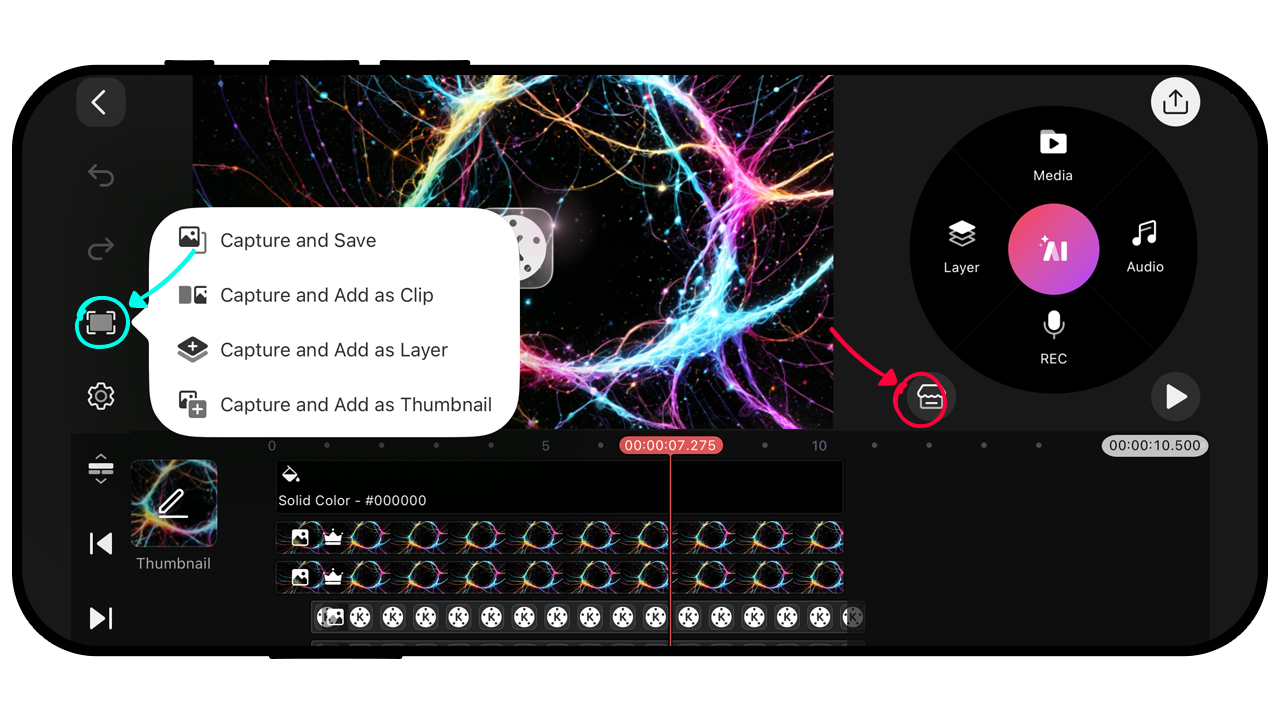 KineMaster makes it easy to grab reference frames from your video with the Frame Capture button. Use frames from your existing video project to guide AI content generation.
 1. Move the Playhead to a frame you want to use for reference
2. Tap the Capture button on the left side of the screen
3. Use RunwayML’s Scene Builder, Edit Video or References to Video to create that missing shot
You can then download and add the AI footage into KineMaster.
 4. The Debut
With the finishing touches in place, export your project for your premiere. Whether you’re showcasing your work on the small screen or a silver screen, KineMaster has you covered. Learn more about optimal export settings in the blog article about bitrate.
After the hard work you put into your video, it’s important to make sure that people show up to see it. Services for social media distribution include AI-powered tools like Pathsocial, where you can benefit from the network’s 10,000+ connected accounts to shout out your work.
It’s a Wrap
Although these tools make some of your scripting near instantaneous, the authenticity of your own voice is irreplaceable. AI is a transformative tool that lets you, the creator and editor, do more than ever before. However, the ultimate reward of getting to see the finished product appreciated by an audience won’t ever change.
FAQ
What is KineMasterGPT?
This free AI tool from KineMaster lets you turn a prompt into a narrated script in a KineMaster project in no time. To get started, open the sidebar in ChatGPT and search the GPTs section for KineMasterGPT.
What AI-generated files can KineMaster import?
KineMaster lets you import .mp4, .mov, .jpg, .png, and .gif files, as well as .mp3 and .aac for audio. Most AI tools will produce content by default in those formats.
How do I add RunwayML videos to KineMaster?
After you have created a video that you like with RunwayML, save the video to your phone or tablet. Images and videos that you save to your iOS or Android device appear in the Photos app or Gallery app, respectively. Next, open KineMaster and tap Media to add your video to the top row of the Timeline. Or tap Layer > Media to add your video as a layer.
How do I improve RunwayML videos in KineMaster?
If you’ve used your free credits to create a low-resolution video with RunwayML, you may need to increase its quality. To maintain high-resolution across all the media in your KineMaster video project, use Super Resolution to upscale your AI footage. Super Resolution is an AI plug-in available to download and use for free to improve the resolution of media in your KineMaster video projects.
This article was written and reviewed by the KineMaster Editorial Team.

Two apps, one subscription!
Subscribers to KineMaster Premium get Spring Premium for free!
Create Mind-blowing Videos, Fast and Easy now!