
Free Up Space for Your Next Edit!
November 6, 2026 · Chad Blomme
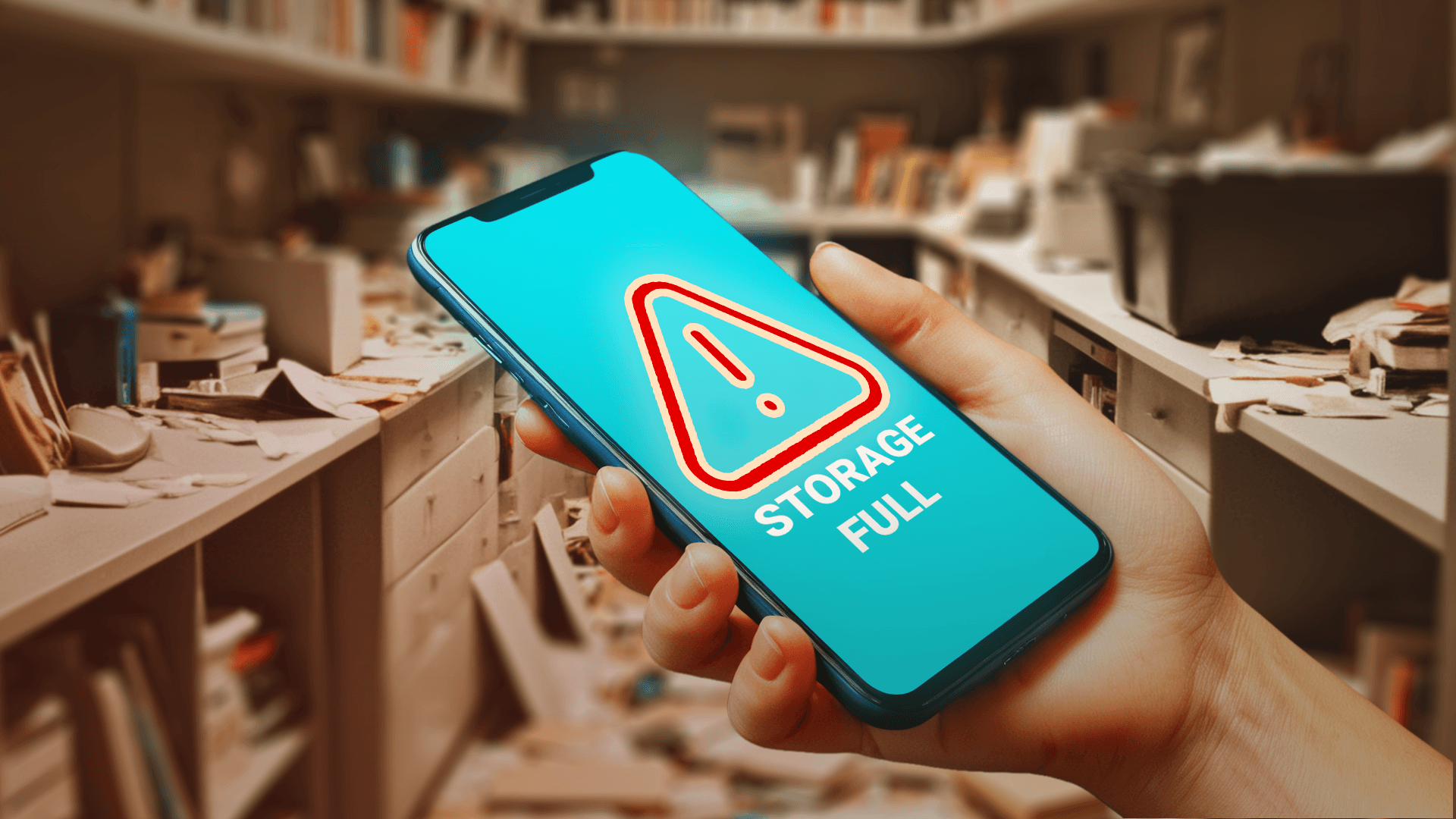
KineMaster makes it easy to save your projects as videos directly to your phone or tablet (or Apple Silicon computer, Googlebook, and Chromebook). Whether you're creating fast, fun videos for TikTok or longer content-driven stories, KineMaster gives you the flexibility to produce videos as large as your imagination. It just needs enough space to save, which is why managing your device storage matters.
Running low on space doesn't just slow things down. It can interrupt exports, affect playback performance, and limit how much media you can import into your projects. A little storage management goes a long way toward keeping your edits smooth and your projects safe.
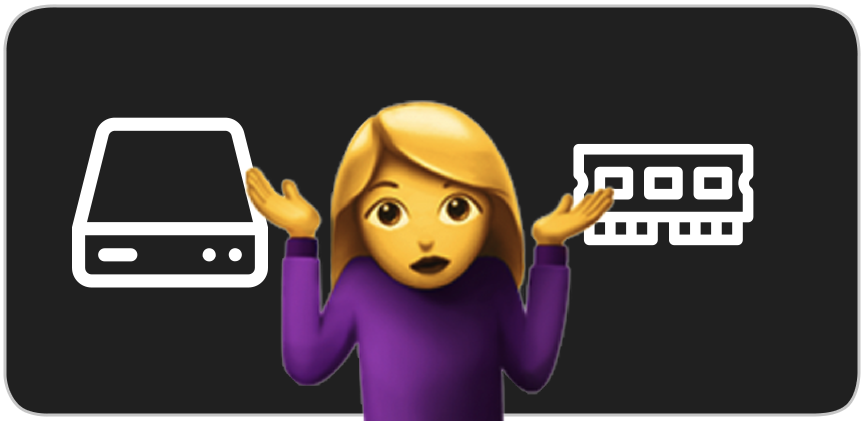
Storage is where everything lives permanently: your videos, photos, music, apps, and KineMaster projects. Storage is usually printed first when you’re looking at device specs, and it’s usually the bigger of the two numbers (32, 64, 128, 256, or more).
RAM (also referred to as memory) provides short-term space for open apps doing computations, copied text, the last video you swiped to, and other app-related functionality. For example, KineMaster needs a minimum of 4GB RAM to use certain AI features. RAM is usually printed on device specifications after the storage and is almost always smaller (2, 3, 4, 6, 8, or more).
Both iOS and Android need a meaningful amount of free storage to operate smoothly, not just for KineMaster, but for the device itself.
On iPhone, Apple recommends keeping at least 1GB free at a minimum, but in practice your iPhone will start showing performance issues and warnings when you start getting close. For comfortable, uninterrupted use, especially with video editing, keep at least 10–15% of your total storage free. On a 128GB iPhone, that's roughly 13–19GB free at all times.
On Android, Google recommends keeping at least 500MB to 1GB free at a minimum, but similar to iOS, performance begins to degrade well before that. For video editing with KineMaster, aim for at least 10% of your total storage free, or a minimum of 5GB free for smooth operation.
As a general rule: if KineMaster (or any other app) is having an issue, check your available storage first.
If you don’t have enough storage space on your phone or tablet, you’ve probably already noticed other apps behaving strangely. In KineMaster, if there isn’t enough storage space, the app will show you a warning message.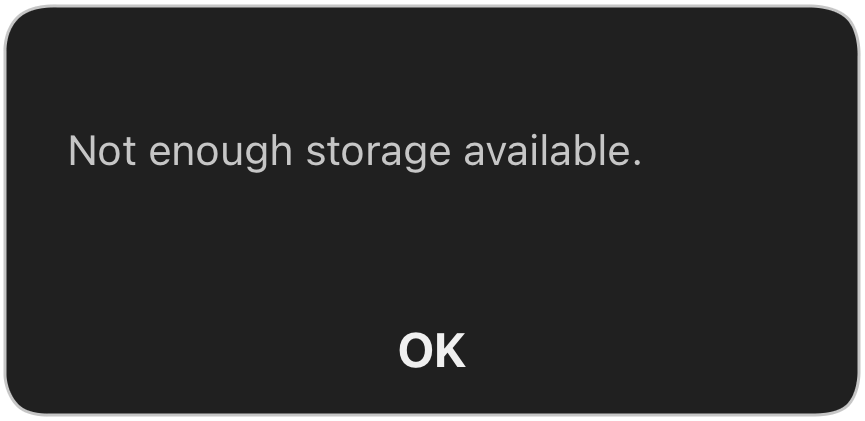
One of the easiest ways to manage storage is right inside KineMaster's Save and Share screen. Before you export, you have full control over the size of your final video file.
KineMaster sets the default bitrate to approximately 8 Mbps, the sweet spot for uploading to platforms like Instagram, TikTok, or YouTube. But you can move the bitrate slider left to reduce the file size or right to increase quality before saving. Lowering the resolution from 4K to FHD or 1080p is another quick way to shrink your file without a noticeable drop in quality for most social media destinations.
If you're curious about how bitrate affects your video in more detail, check out our full guide: Everything You Need to Know About Bitrate.
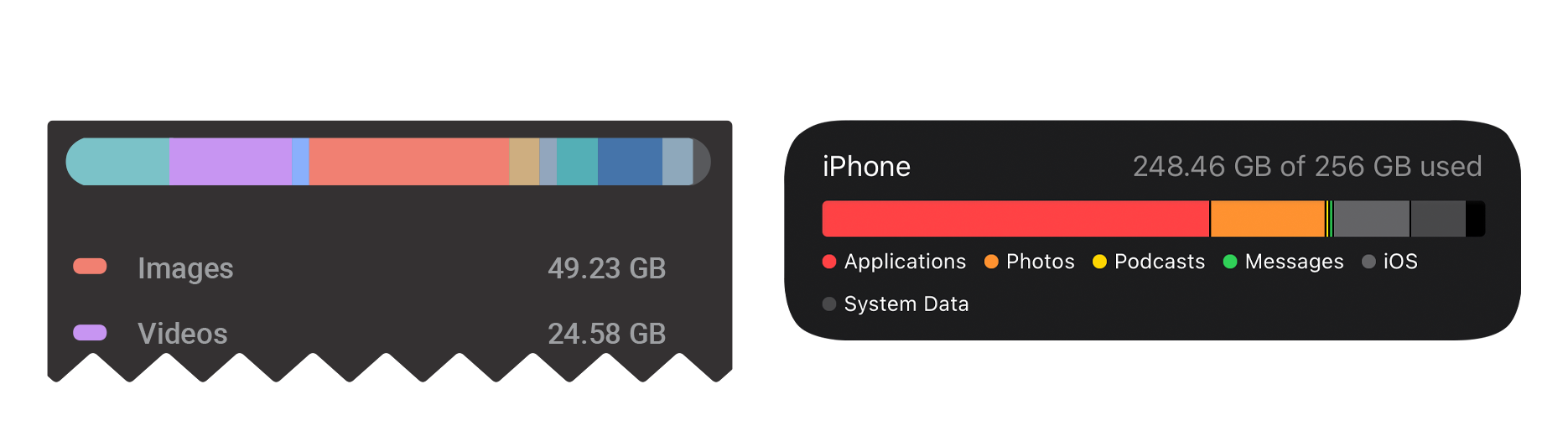
Apps, photos, videos, music, and files all compete for space on your internal storage. It's up to you to back up and clear out content you no longer need. Both Apple and Google provide helpful guides:
Manage storage on your iPhone
Manage storage on your Android phone
Have finished projects sitting on your Create screen that you don't need immediate access to? You can free up space by exporting them as .kine backup files and then transfer them to another device (like a home PC) or to a cloud storage provider (like iCloud, Google Drive, or Microsoft’s OneDrive) for safekeeping. For projects that you can’t live without, following the 3-2-1 backup plan is a surefire way to never lose anything.
Tap the three-dots button next to your project on the Create screen, then tap Export as .kine file. After export, use your Files app (iOS) or File Explorer (Android) to transfer the .kine file to another device or upload it to your cloud storage service. When you're ready to pick up where you left off, simply import the .kine file back into KineMaster by saving it back to your phone or tablet. Then, on the KineMaster Create screen, tap Create New and Import.
Once you've confirmed that your .kine backup has been successfully transferred or uploaded, you can delete the original project from KineMaster's Create screen to reclaim the storage space it was using. To do this, tap the three-dot button next to the project and select Delete.
⚠️ Important: Deleting a project from KineMaster is permanent and cannot be undone! You cannot recover deleted projects unless they are backed up. Always verify that your important .kine backup file is safely stored somewhere accessible before deleting the original project!
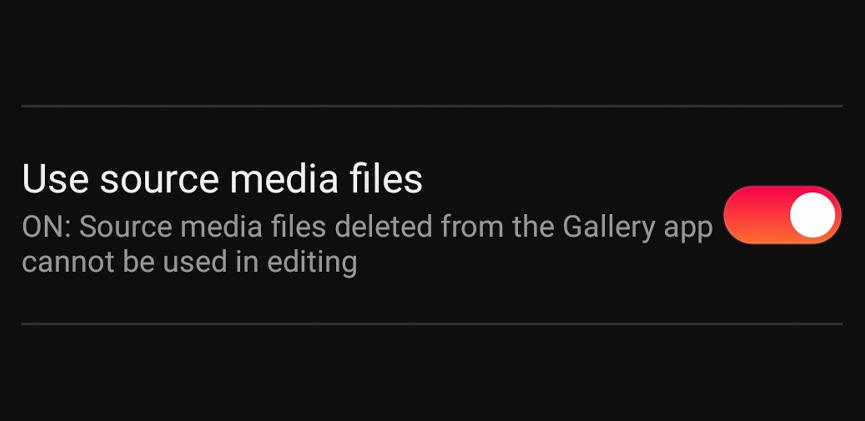
On Android, KineMaster gives you two options for how it handles the source media files from your device that are used in your projects.
You can find this setting by tapping the Settings button at the top of the Create screen. Then, check the Use source media files button.
When this option is OFF (the default), KineMaster duplicates your media files. This means your project won't break even if you rename, move, or delete the original files from your Gallery app. However, this option uses more storage space.
When this option is ON, KineMaster uses your original video or image directly. This uses less storage overall, but your project will be affected if you delete, rename, or move your media.
Caution needed: If Use source media is turned ON and you need to free up storage space, be extremely careful. Deleting videos and images that are used in your KineMaster projects will remove them from your projects, too!
On iOS, KineMaster integrates your source media files internally by default. This works the same way as the Android default setting. Your media is duplicated inside KineMaster to ensure your project stays intact even if the original file is moved or removed from your Photos library. This does mean KineMaster may take up more space on your device over time, so it's worth keeping an eye on your storage as your project library grows.
Making sure that you’ve got enough free storage will make editing and saving your work easy and error-free. Take control of your space so you can focus on what matters most: creating your next great video!
Running low on space doesn't just slow things down. It can interrupt exports, affect playback performance, and limit how much media you can import into your projects. A little storage management goes a long way toward keeping your edits smooth and your projects safe.
Storage vs. RAM: What's the Difference?
Storage is where everything lives permanently: your videos, photos, music, apps, and KineMaster projects. Storage is usually printed first when you’re looking at device specs, and it’s usually the bigger of the two numbers (32, 64, 128, 256, or more).
RAM (also referred to as memory) provides short-term space for open apps doing computations, copied text, the last video you swiped to, and other app-related functionality. For example, KineMaster needs a minimum of 4GB RAM to use certain AI features. RAM is usually printed on device specifications after the storage and is almost always smaller (2, 3, 4, 6, 8, or more).
How Much Free Storage Do You Actually Need?
Both iOS and Android need a meaningful amount of free storage to operate smoothly, not just for KineMaster, but for the device itself.
On iPhone, Apple recommends keeping at least 1GB free at a minimum, but in practice your iPhone will start showing performance issues and warnings when you start getting close. For comfortable, uninterrupted use, especially with video editing, keep at least 10–15% of your total storage free. On a 128GB iPhone, that's roughly 13–19GB free at all times.
On Android, Google recommends keeping at least 500MB to 1GB free at a minimum, but similar to iOS, performance begins to degrade well before that. For video editing with KineMaster, aim for at least 10% of your total storage free, or a minimum of 5GB free for smooth operation.
As a general rule: if KineMaster (or any other app) is having an issue, check your available storage first.
When to Check Your Storage
If you don’t have enough storage space on your phone or tablet, you’ve probably already noticed other apps behaving strangely. In KineMaster, if there isn’t enough storage space, the app will show you a warning message.
Control Your Video File Sizes
One of the easiest ways to manage storage is right inside KineMaster's Save and Share screen. Before you export, you have full control over the size of your final video file.
KineMaster sets the default bitrate to approximately 8 Mbps, the sweet spot for uploading to platforms like Instagram, TikTok, or YouTube. But you can move the bitrate slider left to reduce the file size or right to increase quality before saving. Lowering the resolution from 4K to FHD or 1080p is another quick way to shrink your file without a noticeable drop in quality for most social media destinations.
If you're curious about how bitrate affects your video in more detail, check out our full guide: Everything You Need to Know About Bitrate.
Free Up Space on Your Device
Apps, photos, videos, music, and files all compete for space on your internal storage. It's up to you to back up and clear out content you no longer need. Both Apple and Google provide helpful guides:
Manage storage on your iPhone
Manage storage on your Android phone
Back Up Old KineMaster Projects
Have finished projects sitting on your Create screen that you don't need immediate access to? You can free up space by exporting them as .kine backup files and then transfer them to another device (like a home PC) or to a cloud storage provider (like iCloud, Google Drive, or Microsoft’s OneDrive) for safekeeping. For projects that you can’t live without, following the 3-2-1 backup plan is a surefire way to never lose anything.
Tap the three-dots button next to your project on the Create screen, then tap Export as .kine file. After export, use your Files app (iOS) or File Explorer (Android) to transfer the .kine file to another device or upload it to your cloud storage service. When you're ready to pick up where you left off, simply import the .kine file back into KineMaster by saving it back to your phone or tablet. Then, on the KineMaster Create screen, tap Create New and Import.
Once you've confirmed that your .kine backup has been successfully transferred or uploaded, you can delete the original project from KineMaster's Create screen to reclaim the storage space it was using. To do this, tap the three-dot button next to the project and select Delete.
⚠️ Important: Deleting a project from KineMaster is permanent and cannot be undone! You cannot recover deleted projects unless they are backed up. Always verify that your important .kine backup file is safely stored somewhere accessible before deleting the original project!
How KineMaster Handles Your Source Media (Android)
On Android, KineMaster gives you two options for how it handles the source media files from your device that are used in your projects.
You can find this setting by tapping the Settings button at the top of the Create screen. Then, check the Use source media files button.
When this option is OFF (the default), KineMaster duplicates your media files. This means your project won't break even if you rename, move, or delete the original files from your Gallery app. However, this option uses more storage space.
When this option is ON, KineMaster uses your original video or image directly. This uses less storage overall, but your project will be affected if you delete, rename, or move your media.
Caution needed: If Use source media is turned ON and you need to free up storage space, be extremely careful. Deleting videos and images that are used in your KineMaster projects will remove them from your projects, too!
How KineMaster Handles Your Source Media (iOS)
On iOS, KineMaster integrates your source media files internally by default. This works the same way as the Android default setting. Your media is duplicated inside KineMaster to ensure your project stays intact even if the original file is moved or removed from your Photos library. This does mean KineMaster may take up more space on your device over time, so it's worth keeping an eye on your storage as your project library grows.
Making sure that you’ve got enough free storage will make editing and saving your work easy and error-free. Take control of your space so you can focus on what matters most: creating your next great video!
FAQ
What's the difference between storage and RAM?
Storage is the space on your device where videos, images, apps, and KineMaster projects live. RAM (memory) is used to open and run apps.
How much free storage should be free to use KineMaster?
For smooth video editing, keep at least 10 to15% of your total storage free. Both iOS and Android begin showing performance issues when available storage gets too low, especially during video export.
How do I reduce the file size of a KineMaster video?
On the Save and Share screen, reduce the bitrate using the slider or lower the resolution before saving. Both adjustments will reduce the final file size.
Can I back up my KineMaster projects without saving them as a video?
Yes! Tap the three-dots button next to any project on the Create screen and select Export as .kine file. This saves a compact backup of your full project that can be imported back into KineMaster later.
Can I safely delete a video from my device that’s used in a KineMaster project?
On Android with Use source media files turned OFF (default), your project will be unaffected because KineMaster keeps a duplicate, internal copy. On iOS, the same applies by default. If you have turned this setting ON (Android only), deleting the original file will cause the clip to go missing in your project.
How do I check how much storage KineMaster is using?
On iOS, go to Settings > General > iPhone Storage > KineMaster. On Android, go to Settings > Apps > KineMaster > Storage.
This article was written and reviewed by the KineMaster Editorial Team.

Two apps, one subscription!
Subscribers to KineMaster Premium get Spring Premium for free!
Create Mind-blowing Videos, Fast and Easy now!